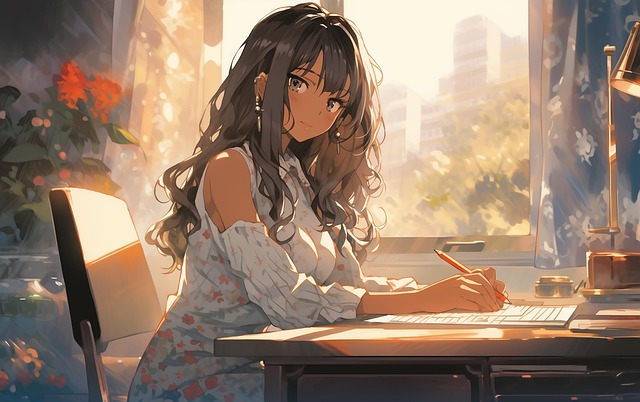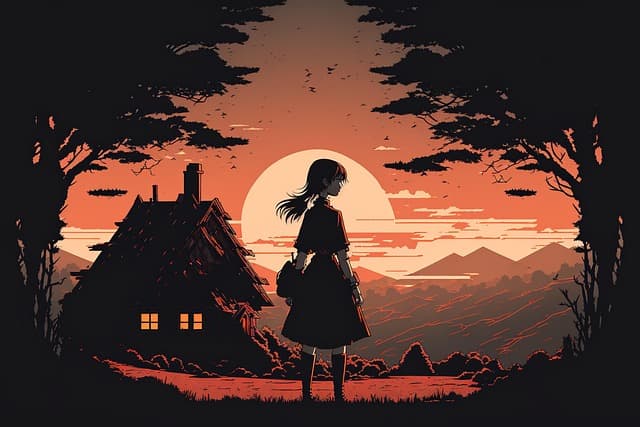
How to choose image resolution. By default, the neural network generates images with a resolution of 1:1. You can change this by adding the –ar parameter at the end of your request. The horizontal resolution –ar 3:2 creates cinematic images, while the vertical resolution –ar 2:3 creates posters and portraits. Other resolutions do not work in Niji Journey. The request looks like this: 90s anime, girl at the deck, –ar 2:3.
How to mix images. If you like the composition or style of a generated image, you can use it as the basis for a request and change the characters in it. To do this, enable remix mode in the settings. Type /settings in the chat and click on Remix mode. After that, when you click on the V1, V2, V3, or V4 options, a window will appear with a request that you can edit or add to.
Another way is to upload the result back to Niji Journey. To do this, right-click on the resulting image, select “Open Original,” copy the link from the browser, paste it into the line in Discord, and write your request.
How to distribute the weight of the request. The greater the weight of a particular parameter, the stronger its influence on the generation result. The default value for all parameters is 0.25. To add weight, add ::x to the word in the request, and to remove it, add ::-x. The sum of the weights cannot be negative.
For example, generating manga based on the Niji Journey photograph is more difficult: the neural network borrows the color palette from the original image, even though it should be black and white. Therefore, you can make a negative request photograph::-1 to remove elements of the photograph and enhance the stylization with the request panel from manga::3.