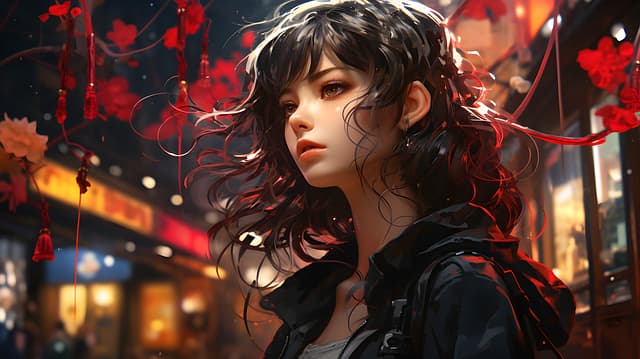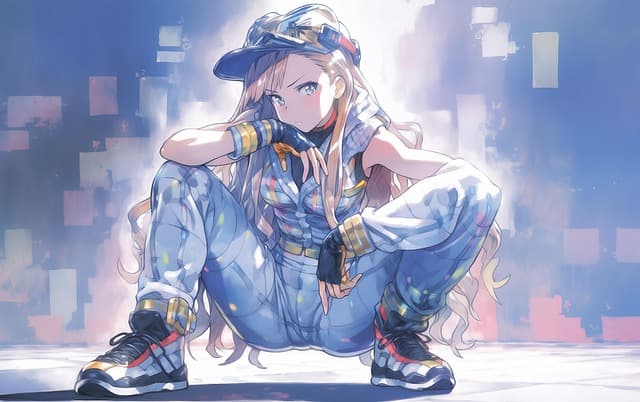
Playground is an innovative neural network designed to create images based on text descriptions. However, in addition to its main function, Playground also offers numerous opportunities for interaction within an active user community.
Here you can study the work of other participants, get inspiration, and even peek at the prompts they use to create unique images. In Playground, everyone will find a place for creativity and exploration.
How to use
Playground AI offers two main modes with unique functionality:
- Image generation based on text descriptions: In this mode, you can describe the desired image using text, and the Playground AI neural network will generate the corresponding visualization. You can explore different options, play with descriptions, and watch as the neural network transforms them into unique images.
- User community: Playground AI also offers a platform for active interaction within the user community. Here you can share your generated images, as well as view and be inspired by the work of other participants. This is a great opportunity to see the variety of creative ideas and styles that are possible with the help of a neural network.
With both modes, you can enjoy the functionality of Playground AI and create unique images based on text descriptions, as well as interact with the community to exchange creative ideas.
Immediately after successful authorization, you will be taken to the image generation interface in Playground AI.
In the “Prompt” field, enter a text description in English of what you want to see in the image. For example, we entered the query “dog in glasses”.
In the “Exclude From Image” field, you can specify elements or colors that should not be present in the generated image.
Using the “Filter” function, you can select the style in which your image will be rendered. For example, we selected the “cinematic” style.
The advantage of Playground AI is that it has preset styles, which greatly simplifies the image generation process.
In other neural networks, you may need to customize the style using additional text prompts, which do not always give the desired result.
In the “Image to Image” section, you can add your own reference image, which will be used by artificial intelligence as the basis for generating the subsequent image.
In the “Model” block, you can select the model that will be used to generate the image. Currently, three models are available: “Stable Diffusion 1.5,” “Stable Diffusion 2.1,” and “Dall-e 2.”
The first two models are available for free, while the “Dall-e 2” model requires a paid subscription.
The “Stable Diffusion 1.5” model is selected by default.
In the “Image Dimensions” field, you can select the size of the generated image. Higher resolutions are available in paid plans. We selected a size of 512×512.
With the Prompt Guidance slider, you can adjust how close the generated image should be to your request. It is recommended to leave the value in the range of 7 to 10 to achieve the optimal balance.
This allows artificial intelligence to use its imagination, but within reasonable limits. We left the default value.
In the “Quality & Details” block, you can use the slider to adjust the number of steps the neural network will take to generate the image.
The remaining step is to select the number of images to be generated.
In Playground AI, we chose the number 4.
Now that the settings are complete, we can start generating an image with the specified parameters. We are confident that the result will be impressive!
In Playground, in addition to the main image generation tool, you will find an extensive user community that is an integral part of the platform.
Each image generated in Playground is accompanied by information about the text settings used. These settings are displayed as a comma-separated list.
If you click on one of them, for example, “Digital Art,” you will be taken to a selection of images created in that style. You can also copy the entire prompt by clicking on “Copy Prompt” and use it when creating a new image, deleting or adding text prompts as you see fit.
In addition, you can find out what “Guidance Scale” value was used when creating a particular image. This parameter determines the degree of approximation to the text prompt.
Information about which model was used to generate the image is also available.
With the “Remix” feature, you can change the style of the selected image, add the necessary prompts, or delete unnecessary elements.
The “Edit” feature allows you to add or delete elements in the image according to your needs.
In addition, you can download any image or copy the link to it for further use.